


PDF Toolkit - Reader
4.540.00 Reviews
App Specs
- Version
- 1.0.8
- Updated On
- License
- Free
- Downloads
- 500,000+
- Developer
- Limetech
- Categories
- Productivity
- Platform
- Android
Screenshots
 Analysis by AppCompare
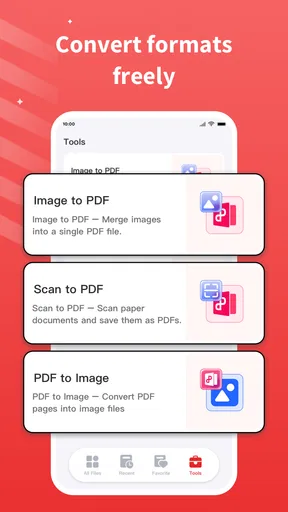
I approached PDF Toolkit - Reader as the kind of utility I might install for one small document problem and then forget about. That is an important test for a productivity app: the first opening can feel useful, but lasting value depends on whether it remains easy to reach, understandable, and dependable when a document arrives at an inconvenient moment. In my experience, this app makes a sensible case for staying installed because it focuses on two recurring tasks: reading documents and converting file formats.
It is a free productivity app from Limetech, available to everyone and compatible with Android devices running version 7.0 or later. The current release is 1.0.8, and its audience has already grown beyond a small experiment, with more than 500 thousand installs and an average score of 4.5 from roughly 2.8 thousand ratings. Those figures do not replace hands-on judgment, but they do suggest that the basic idea is connecting with people who want a straightforward PDF tool rather than a large office suite.
What it feels like during the first week
The first-week appeal is easy to understand. A document utility becomes useful the moment it removes a small interruption: opening a file received in a message, checking a form before sending it, or changing a document into a format that another app handles more comfortably. PDF Toolkit - Reader is built around that practical role instead of trying to become an entire workplace. I found that focus helpful because it keeps the purpose clear from the beginning.
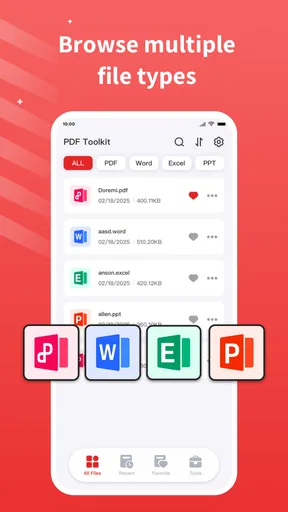
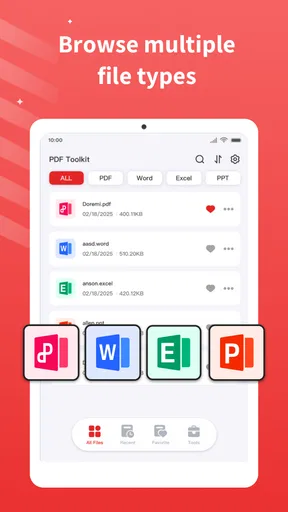
The reading side matters more than it may sound. Many people do not need to edit every document they open; they simply need to inspect a page, confirm a detail, or read something without hunting through a file manager. Keeping document reading and conversion in the same utility can shorten that chain of actions. Rather than opening one app to view a PDF and searching for another when a conversion is needed, I can treat the toolkit as a single starting point.
That does not mean it replaces every document app on a phone. A dedicated office suite is usually a better choice when I need to create complex files, revise layouts, manage spreadsheets, or collaborate on a long project. A dedicated PDF editor may also be preferable for detailed annotations or form work. The appeal here is narrower and, for the right user, more convenient: it offers a compact place to handle common document traffic.
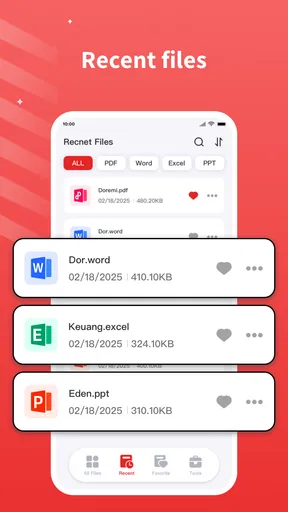
One useful habit is to use it as a checkpoint before sharing a file. I can read through the document first, then decide whether conversion is genuinely necessary. That small pause prevents a common mistake: converting a file simply because another format is familiar, only to discover that the layout or readability is less suitable afterward. The app’s value is not only the conversion action itself; it is the chance to combine inspection and format decisions in one workflow.
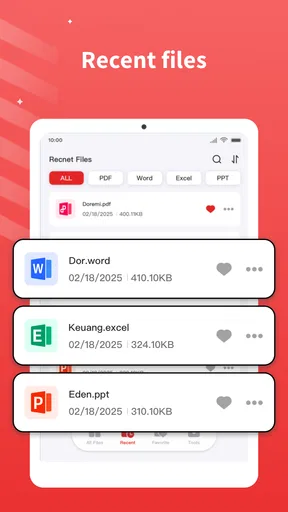
For someone who downloads documents regularly, this can make the first week feel productive without much learning. I would begin by opening a few files from different sources, checking how quickly I can locate them, and trying the conversion process on a non-critical copy. Testing with a duplicate is a sensible precaution because document conversion can change how a file behaves, especially when the original contains unusual formatting, embedded elements, or carefully arranged pages.
Worth Reading Before You Choose

EA SPORTS FC Mobile 26 Is a Bigger Football Game, but It Takes Time

Flipboard Shows What News Apps Must Do Beyond the Feed

Switching to Android Auto Means Rethinking Your Driving Routine

Google Calendar Makes a Crowded Week Easier to Manage

Ludo King Makes the Most of the Minutes Between Plans

Baby Panda World Brings Quick Play to Modern Phones, but Its Game Library Feels Busy
A realistic everyday example would be receiving a document while travelling. I might open it to verify a date or instruction, then convert a copy if I need to pass it into another part of my workflow. The benefit is not dramatic automation; it is avoiding the need to postpone a simple task until I reach a computer. For occasional users, that convenience may be enough to justify keeping the app available.
The first-week limitation is that a focused toolkit can feel less capable than a full document ecosystem. If I expect advanced editing, cloud collaboration, signatures, page design, or extensive annotation, I may quickly run into the boundaries of what this kind of app is intended to do. I would not install it expecting a mobile replacement for a desktop publishing environment. I would install it for reading and format handling, then judge it by how smoothly it performs those jobs.
Where the conversion workflow earns its place
Conversion is most useful when it solves a compatibility problem rather than becoming a routine button I press automatically. For example, a document may need to move from a PDF-centered workflow into another format for further handling. In that situation, the practical question is not simply whether a conversion completes. I also want to know whether the result remains readable, whether the structure still makes sense, and whether I can identify the converted copy without confusion.
My advice is to keep the original file untouched and treat the converted version as a working copy. This creates a simple recovery path if the result is not suitable. It is also worth checking several pages rather than only the first one, especially when the document contains headings, tables, images, or different page layouts. A conversion that looks fine at the beginning may still need a quick review before it is sent onward.
That workflow is a less obvious strength of a combined reader and converter. Reading before conversion gives me context, while reading afterward gives me a quality check. I would not describe this as advanced document management, but it is a useful discipline for people who often move files between apps. The toolkit becomes more valuable when I use it as part of a careful process rather than as a blind format switch.
Why it may still matter after the novelty fades
The month-to-month question is more demanding. A document app can seem essential during the first few days and then disappear into a crowded app drawer. For recurring value, PDF Toolkit - Reader needs to remain useful for small, irregular tasks: reading a file that arrives unexpectedly, checking a document before forwarding it, or preparing a copy for a different app. Those moments may not happen every day, but they are common enough for students, freelancers, families, and anyone who handles administrative paperwork.
I see the strongest long-term case for people who do not want a full office suite always sitting between them and a simple PDF task. A large suite can be powerful, but power often comes with more menus, broader storage integration, and a longer path to a basic action. A focused toolkit can be easier to remember when the need is specific. If I only need to read or convert, I would rather start with an app whose purpose is immediately obvious.
Students may use it when course materials arrive in different formats. A self-employed user may need to inspect documents before sending them to a client or service provider. A household user may open instructions, applications, or official paperwork on a phone without wanting to learn a complete editing platform. In each case, the recurring value comes from reducing friction around documents, not from producing elaborate files.
There is also value in separating reading from editing. Editing can create the temptation to change something simply because the tools are available. A reader-first workflow encourages me to understand the document before deciding what action it needs. That is particularly useful when a file is only being reviewed or passed along. The app works best when it helps me make a clear decision: read it, keep it, convert a copy, or move to a more specialized tool.
Still, I would not call it indispensable for every Android user. If I rarely encounter PDFs or already have a trusted document suite that opens and converts everything I need, adding another utility may not change my routine. Long-term installation makes sense when the app fills a repeatable gap. Without that gap, its presence can become clutter rather than convenience.
The maintenance burden is small, but not zero
Maintenance is where many utilities lose their place. I want to know where files go, which version is the original, and whether the app remains understandable after I have not opened it for several weeks. A reader and converter should not require a complicated personal system, but I still need basic file discipline. I would keep originals in their existing location when possible, give converted copies recognizable names, and remove test files after confirming the result.
This is especially important on a phone, where downloads from messages, browsers, and other apps can quickly become difficult to distinguish. The app can help me perform the document action, but it does not remove the need to organize the output. That distinction matters: a conversion tool is not automatically a document archive. If I treat it as one, I may later struggle to find the version I actually meant to share.
My preferred routine would be simple. First, open the source document and read enough to understand its purpose. Next, create a conversion only if another format solves a real problem. Then inspect the result, share or move it where it belongs, and delete unnecessary duplicates. This takes less effort than repeatedly converting files without checking them, and it makes the app feel more reliable over time because I know what happened to each copy.
For occasional users, the relevant question is whether the interface remains self-explanatory after a break. A focused app has an advantage here because its central jobs are easy to remember. I do not need to rebuild a complex workflow every time I return. That simplicity is one reason a modest utility can outlast a more ambitious app in everyday use.
At the same time, anyone handling sensitive paperwork should slow down before sharing converted documents. I would review the recipient, the file name, and the pages included, particularly when the phone contains multiple similar copies. The app’s convenience should not encourage careless forwarding. A quick visual check is a small price for avoiding an embarrassing document mix-up.
Where fatigue can appear
The main source of fatigue is not the basic idea; it is the gap between a simple promise and the varied reality of documents. PDFs are not all built the same way. Some are mostly text, while others depend on images, unusual fonts, tables, or fixed layouts. A reader may handle ordinary documents comfortably, but conversion is the point where expectations become more demanding. I would be cautious about assuming that every converted file will preserve the original appearance perfectly.
That is why I would avoid using the app as the only step in a high-stakes document process. If a file is a contract, an application, an invoice, or anything with strict formatting, I would inspect the output carefully and keep the source available. For a casual document, a little layout change may be harmless. For a professional submission, it can matter a great deal. In those cases, a desktop converter or a specialized office tool may be the better choice.
Another possible frustration is wanting the app to do more than its focused role suggests. Users often begin with reading and conversion, then expect editing, signing, annotation, scanning, or collaboration. Those are separate needs with separate quality requirements. If those functions are central to my routine, I would choose a broader solution rather than judging this toolkit harshly for not being an entire document office.
There is also a trade-off between convenience and control. A compact workflow is pleasant when I need a quick result, but advanced users may want detailed settings, precise output control, or extensive batch handling. When those controls become important, a specialist application can offer more confidence. PDF Toolkit - Reader is easier to recommend when the user values a clear path over a deep collection of options.
Its age rating of Everyone makes it approachable for a broad audience, but broad accessibility does not mean every workflow will suit every person. A child, student, parent, or older relative may appreciate a straightforward document utility, while a designer or document-heavy professional may find it too limited. The right decision depends less on technical ambition and more on how often I need advanced control.
My long-term verdict
After the first-week curiosity fades, I think PDF Toolkit - Reader earns lasting space for users who repeatedly read documents on Android and occasionally need to change their format. Its strongest quality is the combination of two related jobs without forcing me into a full office suite. I can open a document, understand what it contains, and decide what to do next. That is a modest workflow, but it is also a genuinely useful one.
I would recommend it to someone who wants a free, focused productivity app for everyday document handling. The fact that it supports Android 7.0 and later also makes it relevant to people using older devices rather than only the newest phones. Limetech has kept the product’s identity easy to understand: it is not asking me to reorganize my entire working life, only to make PDF reading and file conversion less awkward.
I would skip it if I need a complete editing environment, detailed document design, collaboration, or maximum control over conversion output. In those situations, a full office suite, desktop workflow, or specialized PDF application is more appropriate. I would also avoid relying on any converter without checking the result when formatting is important. The app can shorten the process, but it does not remove the responsibility to review what I plan to send.
The recurring habit I would build is simple: read first, convert only when there is a reason, inspect the result, and clean up duplicate files. That approach turns the app from a novelty into a dependable small tool. It also answers the practical questions I would have before installing it: yes, it is free; yes, it is designed for general users; yes, it can fit occasional document work; and no, I would not treat it as a substitute for every advanced PDF or office feature.
With an average rating of 4.5 and more than 500 thousand installs, it has clearly found an audience, while its current version, 1.0.8, gives users a defined release to start with. Those figures are useful context, but my recommendation rests on the workflow itself. The app earns its place when it removes a repeated document annoyance without creating a larger maintenance job. For that specific purpose, I would keep it installed and reach for it whenever a PDF needs a quick, careful read or a practical format change.
Pros
- Opens PDFs quickly
- even when switching between several recent files.
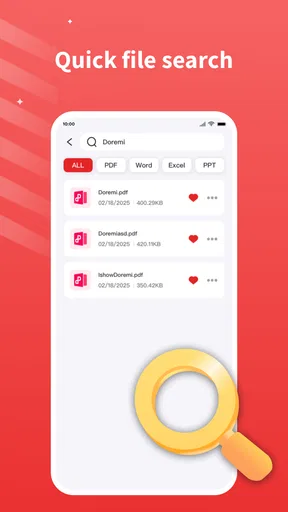
- Search results are easy to scan and jump directly to matching pages.
- Useful zoom controls make small text more comfortable to read.
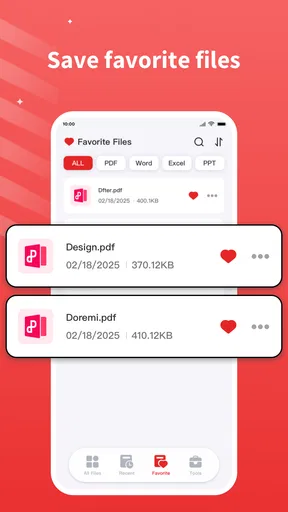
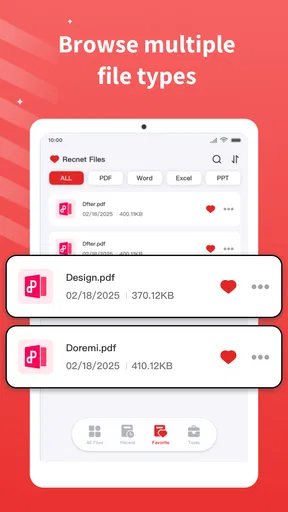
- Supports basic file organization for keeping documents easier to find.
- Clean interface is approachable for users who only need essential PDF tools.
Cons
- Advanced editing features may be limited compared with full desktop PDF suites.
- Large documents can take longer to load on older phones or tablets.
- Some tools may require in-app purchases or a premium upgrade.
- Document sharing options can depend on the other apps installed on the device.
- The app may feel too basic for users needing professional annotation workflows.
FAQs for PDF Toolkit - Reader
What is PDF Toolkit - Reader, and what can I use it for?
PDF Toolkit - Reader is designed for opening, viewing, and managing PDF documents on a mobile device. In everyday use, it can be helpful for reading ebooks, checking forms, reviewing work documents, and accessing downloaded manuals. Depending on the version installed, it may also include tools for organizing files, searching within documents, zooming, rotating pages, and sharing PDFs with other apps.
Can PDF Toolkit - Reader open all PDF files, including large or password-protected documents?
The app should handle standard PDF files reliably, including text documents, scanned pages, and files containing images. However, performance may vary with very large documents, complex layouts, embedded media, or unusually formatted files. Password-protected PDFs generally require the correct password, while files with restrictions, damaged content, or unsupported security settings may not open or display every element correctly.
Does PDF Toolkit - Reader work offline?
A PDF reader typically allows downloaded documents to be opened without an internet connection, and PDF Toolkit - Reader is suitable for offline reading once the files are stored on your device. Internet access may still be needed for downloading documents, synchronizing with cloud services, displaying advertisements, checking updates, or using online sharing and storage features. Offline availability can therefore depend on the specific tool being used.
Can I edit, fill out, sign, or convert PDFs with PDF Toolkit - Reader?
PDF Toolkit - Reader is primarily intended for reading and handling PDF files, but the exact editing features depend on the app version and the tools included in its current release. Some versions may support annotations, highlighting, form filling, signatures, page management, or conversion, while others focus mainly on viewing. Check the feature list before downloading if advanced PDF editing is essential for your workflow.
Is PDF Toolkit - Reader free and is it safe to use?
The app may be available as a free download, although some features can be limited by advertisements, in-app purchases, subscriptions, or premium upgrades. Before installing, review the store listing for current pricing and permissions. For safety, download it only from the official Android or iOS store, keep the app updated, and avoid opening suspicious PDF files, especially documents received from unknown senders.


